
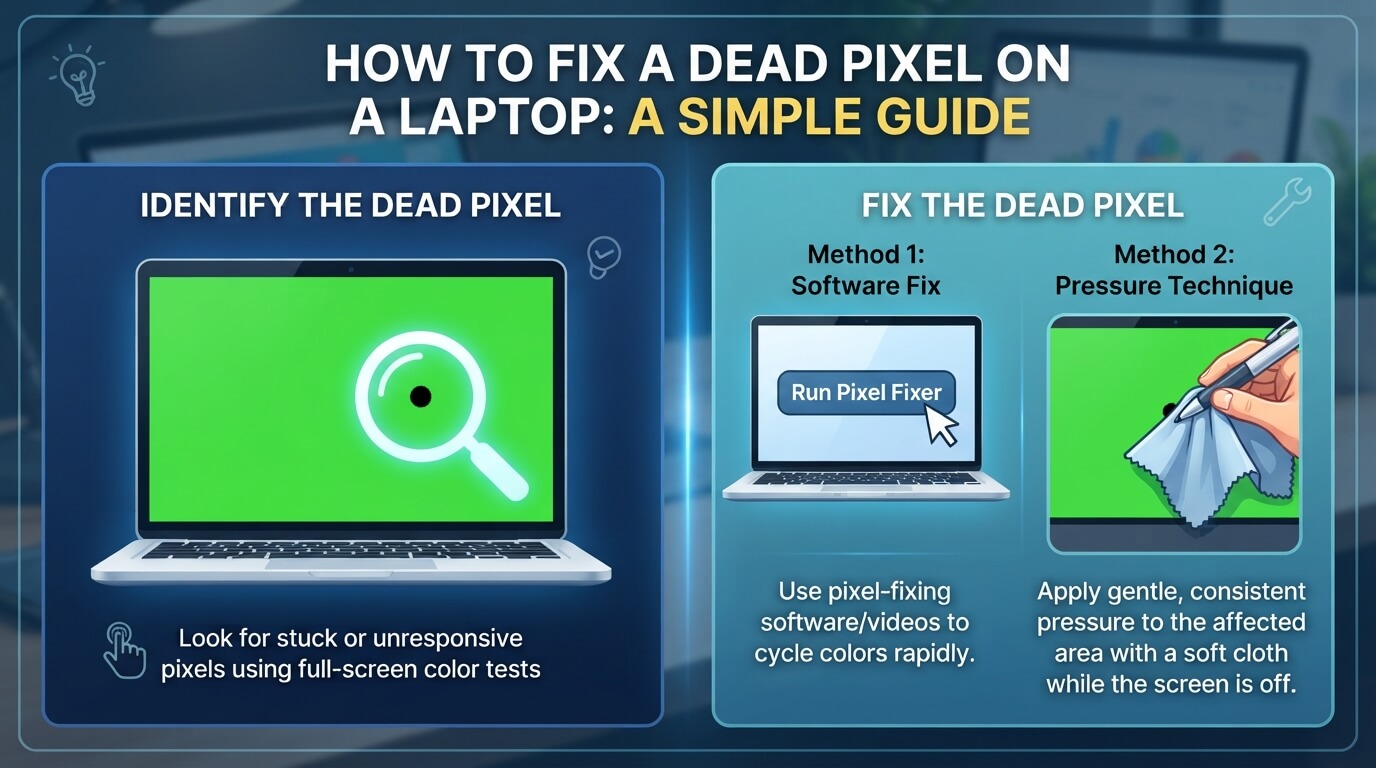
Knowing how to fix a dead pixel on a laptop starts with one small, annoying sight: a tiny black dot that never moves. You spot it on a white web page and wipe the screen. It stays. So can you actually fix it?
Here is the short answer. If the dot is a stuck pixel, which is stuck on one color, you have a decent chance of fixing it with software or a restart. If it is a truly dead pixel, the hardware has failed, and no app can bring it back. Most of the time, the real fix is a warranty claim or a new display panel.
This guide shows you how to tell which problem you have, what is worth trying, what to avoid, and when to stop and call for help.
What a Dead Pixel Is (and What It Is Not)
Your laptop display is a grid of tiny dots called pixels. On an LCD screen, each pixel is made of three RGB subpixels: red, green and blue. The screen mixes them at different brightness levels to make every color you see.
A dead pixel is a spot where all three subpixels stay dark, so the dot looks black. A stuck pixel is a spot where one or two subpixels stay lit, so the dot looks red, green, blue, yellow or white.
A third group is easy to forget. Some “dots” are not pixel faults at all. Dust, a fingerprint, a speck of dried cleaner or a bit of debris trapped under the screen layers can look just like a pixel defect.
Dead Pixel vs. Stuck Pixel: Why the Difference Matters
The difference decides whether a fix is realistic.
| Dead pixel | Stuck pixel | |
| Looks like | Black dot | Red, green, blue or white dot |
| What is wrong | The pixel gets no light or no signal | One or more subpixels are stuck on |
| Easiest to see on | White or light backgrounds | Black or dark backgrounds |
| Can software help? | Almost never | Sometimes |
| Usual next step | Warranty check or panel repair | Try a pixel refresh tool first |
One caution: a stuck pixel that is switched fully off can look the same as a dead one. That is why testing matters before you try anything.
What Causes Dead Pixels on Laptop Screens?
Most dead pixels come from hardware. The usual causes are:
- Manufacturing flaws. A small share of pixels fail at the factory. Panel makers expect this, which is why warranty rules allow a few bad pixels.
- Pressure on the screen. Pressing the glass, closing the lid on a pen or carrying the laptop with a squeezed lid can damage the layers behind it.
- A drop or hard knock can break the thin electrical connections inside the panel.
- Wear and heat. Over the years, the parts that drive each pixel can fail.
Software does not kill pixels. A driver glitch can create odd colors or lines, but a dot that stays in the exact same place on every background is almost always a panel issue.
How to Test for Dead Pixels on a Laptop
Test first. It takes about two minutes and saves you from fixing something that is not broken.
Run a screen color test
- Clean the screen with a dry microfiber cloth.
- Set the brightness to maximum.
- Open an online dead pixel test or any full-screen color test page from a site you trust. Do not download software just for this.
- Go through solid white, black, red, green and blue, in full-screen mode.
- Look closely at each color. Using a magnifier or your phone’s camera zoom helps.
A black dot that shows on white and stays dark on every color is likely dead. A bright dot that shows on black is likely stuck. If a dot only shows on one color, one subpixel is probably the problem.
Rule out other causes
- Screenshot check. Take a screenshot (Windows key + Shift + S on Windows, Shift + Command + 4 on a Mac) and view it on another device. If the dot appears in the screenshot, it is part of the image, not the panel. If it does not, the panel is the likely source.
- External monitor check. Connect the laptop to an external display. If the dot stays only on the laptop screen, the panel is at fault.
- Gentle wipe. If the dot moves or smears, it was dirt.
Write down where the spot sits and take a clear photo. You will need both if you make a warranty claim.
How to Fix a Dead Pixel on a Laptop: 7 Methods to Try
Start with the safest steps and move down the list. Be honest with yourself about the odds. Steps 1 to 5 can help with a stuck pixel or a software glitch. They rarely help a pixel that is truly dead.
1. Clean the screen and rule out dirt
Turn the laptop off. Wipe the screen lightly with a clean microfiber cloth. If needed, dampen it with a little water or a cleaner made for screens. Never spray liquid straight onto the display, and do not press hard.
2. Do a full shutdown and restart
A full shutdown, not sleep, clears temporary graphics glitches. If the spot is still there, shut down, unplug the charger, wait a minute, and power on again. This will not repair a damaged pixel, but it can remove false alarms.
3. Update the graphics driver and reset display settings
An outdated or faulty graphics driver can cause artifacts that look like screen defects. Update the driver through Windows Update or the Intel, AMD or NVIDIA website. On a Mac, install the latest macOS update. Then check that the display is set to its native resolution and the correct refresh rate, and reset any custom color profile.
4. Try a pixel refresh tool for a stuck pixel
A stuck pixel fixing tool flashes rapidly changing colors in a small box. The idea is to nudge a stuck subpixel back to normal. Many people use the browser-based JScreenFix, which suggests running its flashing box over the pixel for at least ten minutes.
Drag the box over the problem spot and let it run. If nothing changes after a few sessions, stop. Results are not guaranteed, and fixed pixels sometimes return.
5. Play a pixel-fixer video
These videos cycle through solid colors for a long time. Play one full-screen with the laptop plugged in and sleep mode off. Try it for 30 minutes at first. It works on the same principle as the tools above, so treat it as another attempt on a stuck pixel, not a cure for a dead one.
If you have a history of photosensitive epilepsy, skip flashing tools and videos.
6. Check your warranty before going further
If the dot survived steps 1 to 5, treat it as a hardware fault. Look up your manufacturer’s pixel policy before you open anything. Opening the laptop yourself may void the warranty. More on this below.
7. Get a professional repair or panel replacement
A technician can confirm the fault and replace the display panel. Individual pixels are not repaired. The whole panel is swapped. For a single dot that is not distracting, many people choose to live with it.
What You Should Not Do
Some guides online suggest massaging the pixel with a finger or a pen cap, or heating the screen. The idea is that pressure can free a stuck subpixel. It can also crack the liquid crystal layer, leave a bright pressure patch and turn one tiny dot into a larger problem. The risk is higher than the payoff, so we do not recommend it.
Also avoid:
- Sharp tools, fingernails or hard objects on the glass
- Hair dryers, heat guns or heating pads
- Taking the screen apart without repair experience, since the display cables are fragile
- Unknown “pixel repair” downloads from unfamiliar sites
Does a Laptop Warranty Cover Dead Pixels?
Sometimes. Manufacturers treat a few faulty pixels as normal for LCD production, so a single dot often does not qualify. Policies differ by brand, model line, country and purchase date, so there is no single number that applies to everyone.
Some points hold across most policies:
- Pixel count. Many makers set a minimum number of defective pixels before they replace a panel. Some reference the ISO 9241-307 standard, which groups panels into classes with different allowed defect counts.
- Bright vs. dark. Always-on (bright) pixels are often treated more strictly than always-off (dark) ones, because they are more noticeable.
- Premium guarantees. Some product lines offer stricter coverage, such as zero bright dots, but often only for a limited time after purchase.
- Physical damage. Cracks, pressure marks or impact damage usually void the claim.
Before you contact support, gather a photo of the defect on a solid background, the dot’s location, your receipt, your model and serial number, and the date you first noticed it. If the laptop is new, contact the seller or manufacturer quickly. Return windows are often shorter than the warranty period.
Can Dead Pixels Spread or Get Worse?
A single dead pixel does not spread the way a stain does. It often stays the same for years. But more can appear, especially after pressure, impact or heat, or when the panel simply ages. If new dots, lines or discolored patches show up, the cause is probably wider panel damage, and a technician should look at it.
Should You Replace the Screen for One Dead Pixel?
Usually not. If the dot is small, sits near an edge and does not bother you, leaving it alone is a reasonable choice. A replacement makes sense when:
- The laptop is under warranty and the fault qualifies
- The pixel sits where you look all day, such as the middle of the screen
- You see several dead or stuck pixels, lines, cracks or flicker
- You work in photo, video or design, where accurate color matters
Laptop screen replacement cost varies a lot. It depends on the model, panel type, resolution, refresh rate, touch support and whether you pay for labor. Ask for a written quote first. If the quote comes close to the value of the laptop, compare it with the price of a replacement machine.
How to Prevent Dead Pixels
You cannot prevent factory defects, but you can lower the risk of damage:
- Lift the laptop by its base, not by the screen
- Never close the lid with a pen, cable or headphones on the keyboard
- Do not press on the display, even when cleaning it
- Use a padded sleeve or bag, and keep heavy items off the lid
- Clean with a soft microfiber cloth only
[Internal link suggestions: laptop screen flickering fix; how to clean a laptop screen safely]
Frequently Asked Questions
Can you fix a dead pixel on a laptop?
Rarely. A truly dead pixel is a hardware failure, so software cannot repair it. A stuck pixel may respond to a pixel refresh tool. If it does not, check your warranty.
How do I fix a black dot on my laptop screen?
Wipe the screen first to rule out dirt. Then run a color test and a screenshot check. If the dot stays put on every background, it is probably a dead pixel and needs a warranty claim or panel replacement.
Is a dead pixel the same as a stuck pixel?
No. A dead pixel stays black. A stuck pixel stays a fixed color. Only stuck pixels have a realistic chance of recovering with software.
Can dead pixels spread across a laptop screen?
A single one does not spread. New ones can appear over time, usually because of pressure, impact or aging.
How long does a pixel repair tool take to work?
Some stuck pixels respond in minutes. Others need longer sessions, and some never respond. Follow the tool’s recommended time and stop if there is no change after a few tries.
Is it safe to press a dead pixel?
No. Pressing can damage the screen layers and make things worse.
Will a dead pixel get worse over time?
Not necessarily. Many stay unchanged. Watch for new dots, lines or color patches, which point to a bigger panel problem.
Should I replace my laptop screen because of one dead pixel?
Only if it is covered, very distracting, or comes with other defects. Otherwise, many people keep using the laptop.
Does a laptop warranty cover dead pixels?
It can, but only if the defect meets the manufacturer’s pixel policy. One dot often does not qualify.
How can I test my laptop screen for dead pixels?
Show full-screen white, black, red, green and blue backgrounds and look for dots that never change. Confirm with a screenshot or an external monitor.
The Practical Takeaway
Test first, then try the free fixes in order. If the spot responds, great. If it does not, stop poking at the screen and check your warranty. A calm, documented claim usually does more for a dead pixel than any app will.